
Introduction
Recently I came across a question on the Power Apps Portals community portal, which I found interesting and a good candidate for a blog post. The requirement mentioned in the question is to perform custom duplicate detection using multiple criteria while creating a record from Power Apps Portals. Dataverse comes with out-of-the-box duplicate detection rules with which we can perform custom validations by setting up rules but one limitation is it will not be triggered when records are created or updated from Power Apps Portals. This requirement can also be solved defining Alernate Keys but there are few limitations to this approach as well.
Solutions
There can be three solutions for this requirement
- Implementing synchronous Workflow triggered on create of a record
- Implementing plugin and using “Create” message at pre-operation stage.
- Using Power Apps Portals WebAPI
In this blog post I will cover option 1 as mentioned above and option 2 and 3 will have in their own blog posts.
Option 1 : Duplicate Detection Using Workflow
In my opinion, this option is the simplest and more out-of-the-box option to perform duplicate detection while creating new records from Power Apps Portals. The idea behind this option is to use out-of-the-box synchronous workflow to perform validation when a user submits a Basic or Advance form from the portal. The system will allow the user to create the record if validation is successful or else the system will throw the error and stop the record creation process. To demo this I am going to use the contact entity and a basic form to capture Contact’s basic information and then use synchronous workflow to perform duplicate validations using a custom workflow activity. In this example, a contact is marked as duplicate if the record has the same email address and city.
Step By Step
- Step 1: Create Dataverse form called “Contact – Portal” with the list of fields you want to capture for a contact.
QUICK TIP
Do not share the Dataverse form between the backend user and the portal user. Meaning if you want to expose the Dataverse form on the portal as a basic or advance form, create a separate form with proper naming convention eg “Contact – Portal” in this case and then hide that from backend user using security roles or exclude it from model-driven app form list.

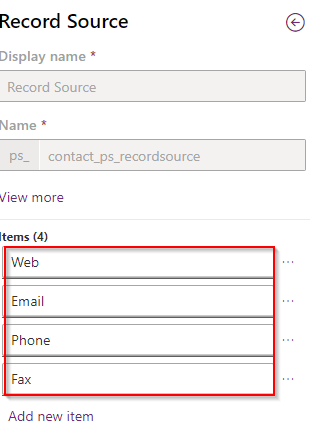
- Step 2: Add new field called “Record Source” to contact entity of type option sets with following options:
- Step 3: Create Basic form record “New Contact” for the Dataverse form created in Step 1.
QUICK TIP
Always enable table permission on basic and advance forms to enforce security

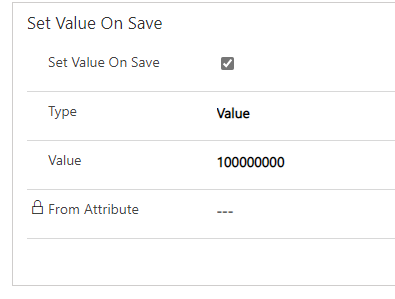
- Step 4: Add Basic Form metadata for “Record Source” attribute and updated section “Set Value On Save” as show below. This will save the record with Record Source as “Web”. NOTE: Your system might have different value.
- Step 5: If you don’t have table permission on the Contact table create a new record and grand appropriate permission for the Contact table. For more on the table, permission click here. For this example, I am giving Global access to authenticated user web role.

- Step 6: Create a Web Page either by using the new Portal Studio with the steps mentioned here or use the traditional way by following the steps mentioned here. If you are using Portal Studio then use these steps to associate Basic Form to the web page or else just update the Basic Form lookup on web page record while following the steps mentioned here, use the basic form created in step 3. In this example, I created a web page called “New Contact”

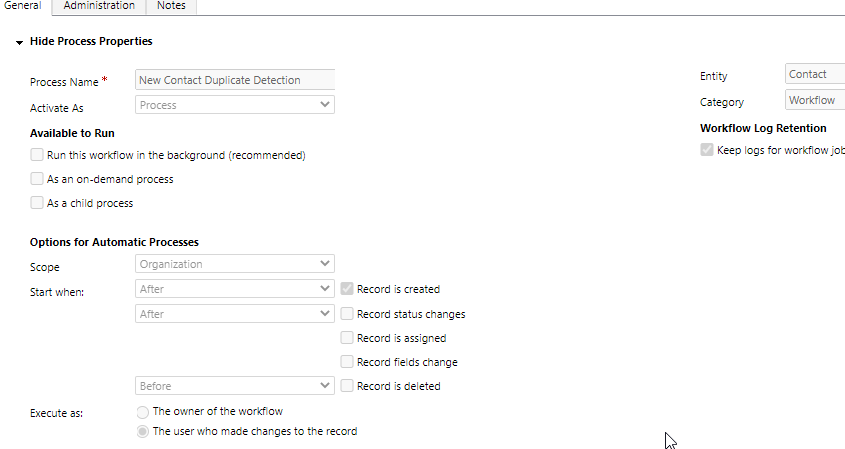
- Step 7: Create a traditional synchronous workflow with the following settings, please see the screenshot below:
- Process Name: New Contact Duplicate Detection (you can name whatever you want)
- Entity: Contact (this depends on your requirement, on which table you want to perform duplicate detection)
- Activate As: Process
- Scope: Organization
- Start When: Record is created
Step 8: Add following steps to the workflow created in step 5

- Check if the record is created from the portal
- We want to perform validation only if the record is created from the portal. If you have a requirement to use the condition that cannot be implemented using out-of-the-box duplicate detection rules then ignore this check.
- Get count of contacts with the email and city name entered for this contact
- This step used the custom workflow activity called FetchXMLResultCount (For more details on this custom workflow activity review GitHub Project) to get the total number of records in Dataverse using FetchXML shown below. This is just an example, but depending on your requirement you can update this FetchXML.
<fetch>
  <entity name="contact" >
    <attribute name="emailaddress1" />
    <attribute name="lastname" />
    <attribute name="firstname" />
    <attribute name="address1_city" />
    <filter type="and" >
      <condition attribute="emailaddress1" operator="eq" value="{0}" />
      <condition attribute="address1_city" operator="eq" value="{1}" />
    </filter>
  </entity>
</fetch>
Below is the step configuration where I am passing email and city as parameters to replace at {0} and {1} in FetchXML query show above.

- Check if count of records is greater than 1
- This step checks if the count of the result returned back in #2 is greater than 1
QUICK TIP
Synchronous workflow is the always a post operation function and because of which result for any brand new record that is created is always 1. So to check for duplicates the criteria will be to check if the count is greater than 1.
- If duplicate record is found cancel the process and throw error
- If #3 is true then this step will cancel the execution of the workflow by throwing the error “Contact already exists“. This will roll back the entire transaction and a new contact is not created in Dataverse..
Results
With the option 1 solution implemented, if a portal user tries to create a contact record with the same “Email” and “City” the process “New Contact Duplicate Detection” throws an error as shown below:

QUICK TIP
To view user friendly error message thrown by a workflow or by a plugin you will need “Site/EnableCustomPluginError” Site Setting created and set to “true”. See the screenshot below:

Conclusion
Out of the three options mentioned at the beginning of this blog, this option is pretty easy to implement and maintain for avoiding duplicate records getting created from Power Apps Portals. Having said that if you have some complex requirements this option might not really work or if you already have a synchronous process that is triggered on the creation of the record then having two synchronous processes will create conflicts and further issues. In such a case, you might have to choose from option 2 or 3. I will be discussing those options in the coming blogs.
Hope this is helpful!
 Power Solutions 365