Streamline Power Pages with Environment Variables for Site Settings

Ever since I started using solution-aware Power Pages, I’ve always had to include an extra post-deployment step to manually update environment-specific Site Settings. However, that changed recently when Microsoft introduced a new feature that allows us to use Environment Variables as the source for Site Settings.

What are Site Settings?

Site Settings are nothing but the meta data key value pair used by Power Pages to define settings for by the WebSite configured in a given environment. These settings control various aspects of the portal’s behavior and are crucial for maintaining different configurations across environments.

The Problem

Before this feature, Site Settings in solution-aware Power Pages presented several challenges:

  • Manual Post-Deployment Updates: Each time a solution was deployed to Test, UAT, or Production, we had to manually update Site Settings to match the new environment.
  • Unmanaged Layer Issues: If the deployed solution was Managed, modifying Site Settings post-deployment added an unmanaged layer, breaking the integrity of the solution.
  • Inconsistent Configurations: Maintaining consistency across environments required manual intervention, increasing the risk of errors.
  • Redundant Storage of Common Settings: Some settings, such as API URLs, were needed in multiple Power Platform components (Power Pages, Power Automate, Power Apps, etc.), requiring duplicate maintenance.

The Solution: Site Settings with Environment Variables

Microsoft recently introduced a feature that improves how Site Settings are stored and managed in solution-aware Power Pages.

New “Source” Field in Site Settings

A new field, “Source,” has been added to the Site Setting table, allowing users to specify where the setting value should be stored.

Two options are available:

  • Table: Stores the Site Setting value directly in the Site Setting table (traditional approach).
  • Environment Variable: Links the Site Setting to an Environment Variable, dynamically retrieving its value based on the environment.

For configuration details, check Microsoft Learn.

Why This is a Game-Changer

In my opinion, this feature is a game-changer for the Site Settings component in Power Pages. By allowing Site Settings to be defined as Environment Variables, we no longer need to manually update settings in different environments. More importantly, these Environment Variables are not limited to Power Pages—they can be used across the entire Power Platform, wherever Environment Variables are accessible.

For example, imagine we have a requirement to store a common API endpoint URL that needs to be used in both Power Pages and Power Automate. Previously, we would have to maintain this URL separately in two places:

  • As a Site Setting in Power Pages.
  • As an Environment Variable in Power Automate.

This approach created redundancy, requiring manual updates in both locations whenever the URL changed. With the new feature, we can now create a single Environment Variable to store the API endpoint.

  • In Power Pages, we can create a Site Setting and set its Source to this Environment Variable, ensuring the portal retrieves the latest value dynamically.
  • In Power Automate, we can access the same Environment Variable wherever needed, eliminating duplicate configurations.

This not only simplifies management but also ensures consistency across different components of the Power Platform, reducing errors and improving maintainability.

Since we can now use Environment Variables as the source for Site Settings, all the benefits of Environment Variables extend to Site Settings as well. This includes enhanced security, automation, and environment-specific configuration management.

  • Security & Sensitive Data Handling: Instead of storing sensitive information (like API keys or secrets) directly in Site Settings, we can reference Azure Key Vault through Environment Variables. This ensures that sensitive values are securely managed and not exposed in Dataverse tables.
  • Application Lifecycle Management (ALM) & Deployment Automation: Environment Variables can be pre-configured with different values for Dev, Test, UAT, and Production environments. When deploying solutions through Power Platform Pipelines or Azure DevOps, the correct values are automatically assigned, eliminating the need for manual updates after deployment.
  • Managed Solution Integrity: When Site Settings are updated post-deployment, they create an unmanaged layer, which can break the integrity of Managed Solutions. By using Environment Variables, values are updated dynamically without modifying the solution components, keeping the solution properly managed.
  • Cross-Platform Usability: Environment Variables can be used not just in Power Pages but across Power Automate, Power Apps, and Dataverse plugins. This allows for a centralized configuration that can be accessed across multiple Power Platform components, reducing redundancy and ensuring consistency.
  • Scalability & Maintainability: Managing configurations through Environment Variables makes it easier to scale solutions across multiple environments and organizations. Updates to settings can be made centrally, reducing maintenance efforts and minimizing configuration drift.

Choosing Between Table-Based vs. Environment Variable-Based Site Settings

Use Environment Variables when:

  • The setting is environment-specific (e.g., API URLs, feature toggles, connection strings).
  • The value needs to be shared across Power Pages, Power Automate, Power Apps, or other Power Platform components.
  • You want to avoid manual post-deployment updates in downstream environments (Test, UAT, Production).

Use Table-Based Site Settings when:

  • The setting is specific to the Power Pages portal and doesn’t need to be accessed outside of Power Pages.
  • The value is static and unlikely to change per environment.
  • You need granular control over records (e.g., role-based access to modify settings).

Summary

The ability to use Environment Variables as the source for Site Settings introduces:
🔹 Better security by enabling Azure Key Vault integration for sensitive data.
🔹 Improved ALM & deployment automation by eliminating manual updates.
🔹 Consistent configuration management across Power Pages, Power Automate, and other Power Platform components.
🔹 Scalability and maintainability through centralized settings.

This feature makes Power Pages deployments more robust, secure, and efficient, significantly reducing manual configuration efforts and deployment risks.

Avoiding Duplicate Records in Power Apps Portals – Option 1

Introduction

Recently I came across a question on the Power Apps Portals community portal, which I found interesting and a good candidate for a blog post. The requirement mentioned in the question is to perform custom duplicate detection using multiple criteria while creating a record from Power Apps Portals. Dataverse comes with out-of-the-box duplicate detection rules with which we can perform custom validations by setting up rules but one limitation is it will not be triggered when records are created or updated from Power Apps Portals. This requirement can also be solved defining Alernate Keys but there are few limitations to this approach as well.

Solutions

There can be three solutions for this requirement

  1. Implementing synchronous Workflow triggered on create of a record
  2. Implementing plugin and using “Create” message at pre-operation stage.
  3. Using Power Apps Portals WebAPI

In this blog post I will cover option 1 as mentioned above and option 2 and 3 will have in their own blog posts.

Option 1 : Duplicate Detection Using Workflow

In my opinion, this option is the simplest and more out-of-the-box option to perform duplicate detection while creating new records from Power Apps Portals. The idea behind this option is to use out-of-the-box synchronous workflow to perform validation when a user submits a Basic or Advance form from the portal. The system will allow the user to create the record if validation is successful or else the system will throw the error and stop the record creation process. To demo this I am going to use the contact entity and a basic form to capture Contact’s basic information and then use synchronous workflow to perform duplicate validations using a custom workflow activity. In this example, a contact is marked as duplicate if the record has the same email address and city. 

Step By Step

  • Step 1: Create Dataverse form called “Contact – Portal” with the list of fields you want to capture for a contact.

QUICK TIP

Do not share the Dataverse form between the backend user and the portal user. Meaning if you want to expose the Dataverse form on the portal as a basic or advance form, create a separate form with proper naming convention eg “Contact – Portal” in this case and then hide that from backend user using security roles or exclude it from model-driven app form list.
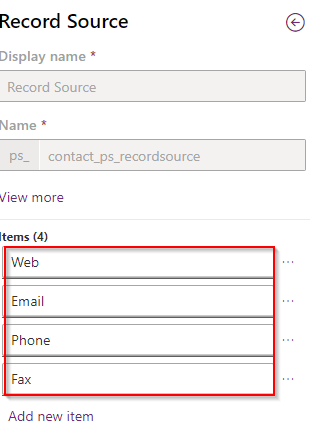
  • Step 2: Add new field called “Record Source” to contact entity of type option sets with following options:
  • Step 3: Create Basic form record “New Contact” for the Dataverse form created in Step 1.

QUICK TIP

Always enable table permission on basic and advance forms to enforce security
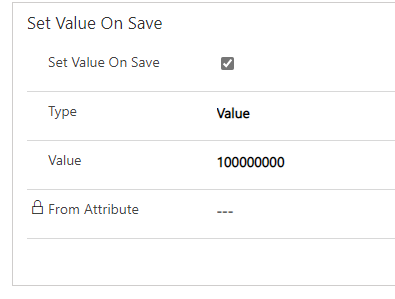
  • Step 4: Add Basic Form metadata for “Record Source” attribute and updated section “Set Value On Save” as show below. This will save the record with Record Source as “Web”. NOTE: Your system might have different value.
  • Step 5: If you don’t have table permission on the Contact table create a new record and grand appropriate permission for the Contact table. For more on the table, permission click here. For this example, I am giving Global access to authenticated user web role.
  • Step 6: Create a Web Page either by using the new Portal Studio with the steps mentioned here or use the traditional way by following the steps mentioned here. If you are using Portal Studio then use these steps to associate Basic Form to the web page or else just update the Basic Form lookup on web page record while following the steps mentioned here, use the basic form created in step 3. In this example, I created a web page called “New Contact”
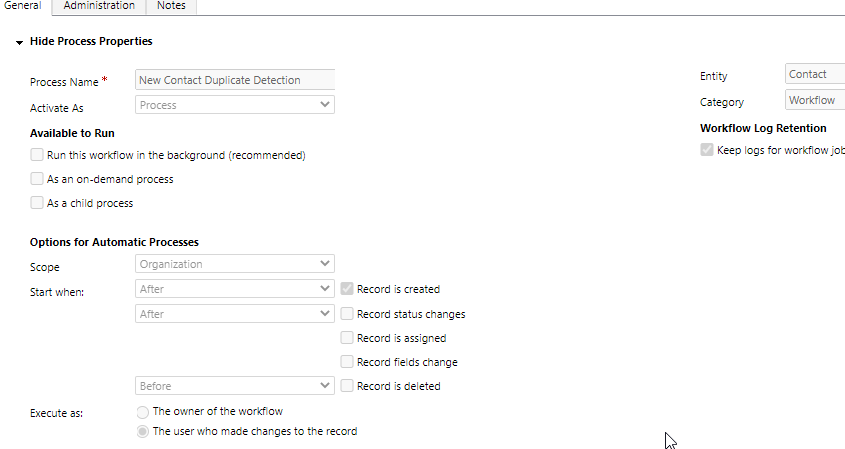
  • Step 7: Create a traditional synchronous workflow with the following settings, please see the screenshot below:
    • Process Name: New Contact Duplicate Detection (you can name whatever you want)
    • Entity: Contact (this depends on your requirement, on which table you want to perform duplicate detection)
    • Activate As: Process
    • Scope: Organization
    • Start When: Record is created

Step 8: Add following steps to the workflow created in step 5

  1. Check if the record is created from the portal
    • We want to perform validation only if the record is created from the portal. If you have a requirement to use the condition that cannot be implemented using out-of-the-box duplicate detection rules then ignore this check.
  2. Get count of contacts with the email and city name entered for this contact
    • This step used the custom workflow activity called FetchXMLResultCount (For more details on this custom workflow activity review GitHub Project) to get the total number of records in Dataverse using FetchXML shown below. This is just an example, but depending on your requirement you can update this FetchXML.
<fetch>
  <entity name="contact" >
    <attribute name="emailaddress1" />
    <attribute name="lastname" />
    <attribute name="firstname" />
    <attribute name="address1_city" />
    <filter type="and" >
      <condition attribute="emailaddress1" operator="eq" value="{0}" />
      <condition attribute="address1_city" operator="eq" value="{1}" />
    </filter>
  </entity>
</fetch>

Below is the step configuration where I am passing email and city as parameters to replace at {0} and {1} in FetchXML query show above.

  1. Check if count of records is greater than 1
    • This step checks if the count of the result returned back in #2 is greater than 1

QUICK TIP

Synchronous workflow is the always a post operation function and because of which result for any brand new record that is created is always 1. So to check for duplicates the criteria will be to check if the count is greater than 1.
  1. If duplicate record is found cancel the process and throw error
    • If #3 is true then this step will cancel the execution of the workflow by throwing the error “Contact already exists“. This will roll back the entire transaction and a new contact is not created in Dataverse..

Results

With the option 1 solution implemented, if a portal user tries to create a contact record with the same “Email” and “City” the process “New Contact Duplicate Detection” throws an error as shown below:

QUICK TIP

To view user friendly error message thrown by a workflow or by a plugin you will need “Site/EnableCustomPluginError” Site Setting created and set to “true”. See the screenshot below:

Conclusion

Out of the three options mentioned at the beginning of this blog, this option is pretty easy to implement and maintain for avoiding duplicate records getting created from Power Apps Portals. Having said that if you have some complex requirements this option might not really work or if you already have a synchronous process that is triggered on the creation of the record then having two synchronous processes will create conflicts and further issues. In such a case, you might have to choose from option 2 or 3. I will be discussing those options in the coming blogs.

Hope this is helpful!